

DockNest
DockNest turns your Dock into a lightning-fast launcher. Group apps and documents into Nests – and open everything directly from the Dock, no Finder required.
FAQ | Screenshots | Download
Everything always at hand
Apps, documents, projects – organized in Nests, one click away from the Dock. No searching, no detour through the Finder.
Nothing gets moved
Files and apps stay exactly where they are. DockNest stores references, not files.
Adapts to you
Multiple Nests for different contexts. Apps, utilities, current project – you decide what goes in.
How it works (3 steps)
- Create a Nest – Set up a Nest for each project or context. Work, tools, design – whatever fits your day.
- Drop in your apps – Drag any apps, documents, or folders from Finder into your Nest. Done.
- Click and go – Open DockNest from the Dock, tap what you need, done.
Tips & Guide
Getting Started
- Drag any apps, documents, or folders from Finder directly into an open DockNest window. To add multiple files from different Finder windows, click the lock icon in the tab bar – the panel will stay open. Click again to unlock.
- Create multiple Nests for different projects – right-click a tab to rename it
- DockNest opens with a click on its icon in the Dock
Keyboard Shortcuts & Gestures
- Hold ⌥ and hover over a file → Remove button appears (red minus)
- Right-click a file → Open / Remove
- Hold ⌘ and drag a file → Reorder items within a Nest
- Hold ⌥ and hover over a tab → Tab delete button appears
- Right-click a tab name → Rename / Remove
- Hold ⌘ and drag a tab → Reorder tabs
Tips
- Enable "Launch at Login" in Settings so DockNest is always ready
- Adjust icon size, number of columns, and panel height in Settings to your liking
- The Nest stays open while you drag documents into it – and only closes when you click outside and release the mouse button.
Screenshots
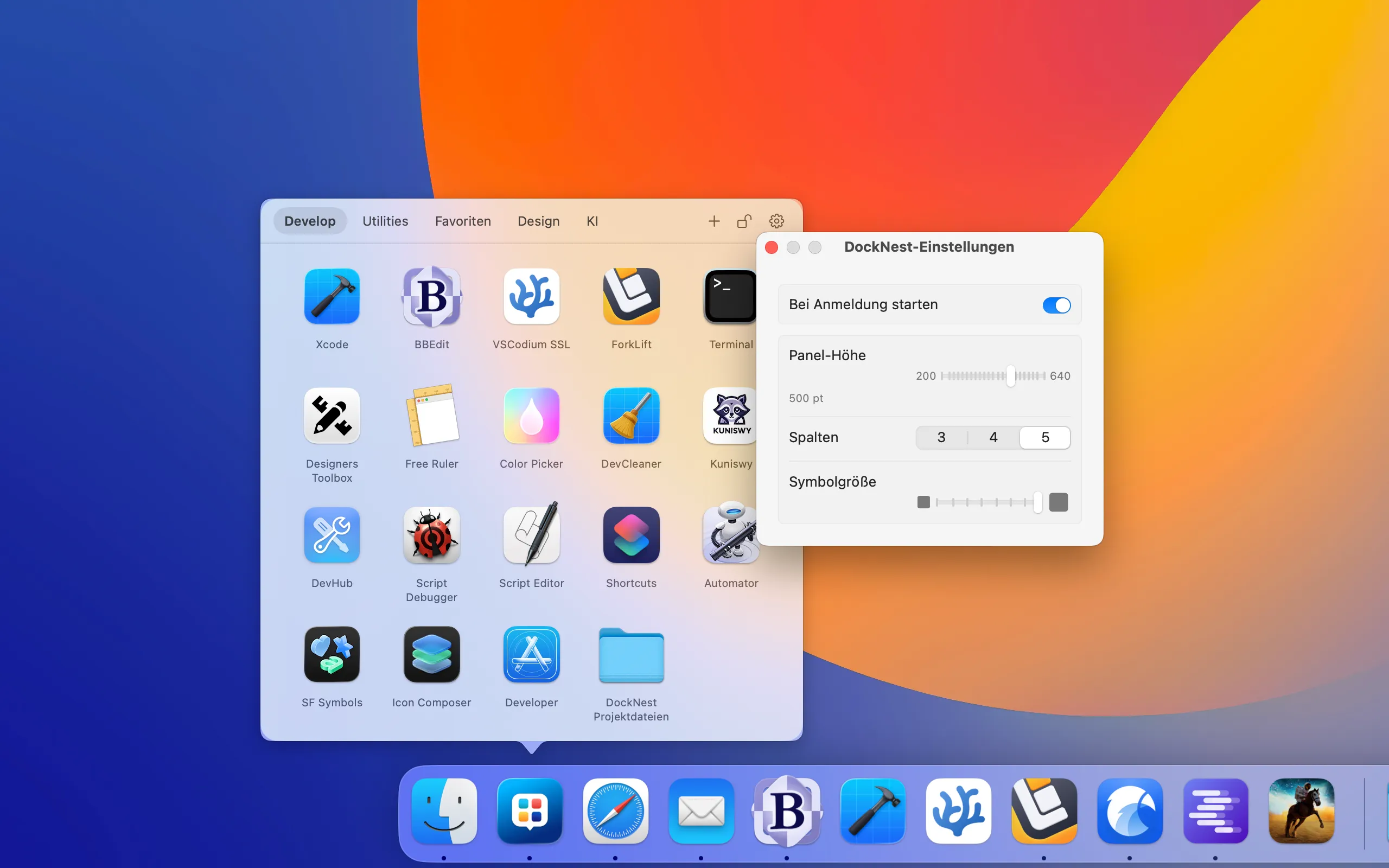
DockNest Settings
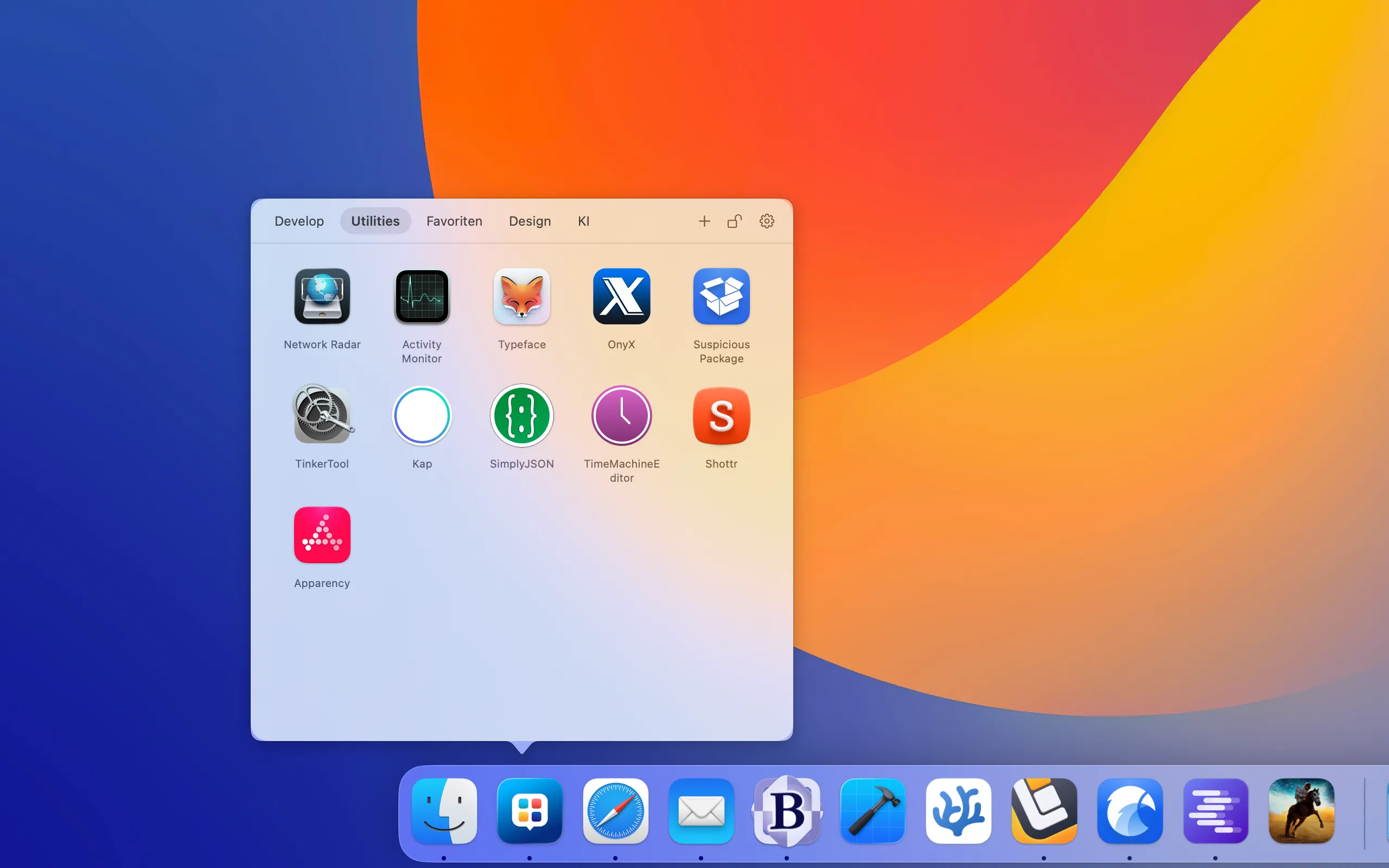
DockNest with 5 columns and large icons
Support DockNest
If you contribute €7.99 (or more), you will receive an email with a download link for the Apple-notarized "DockNest.app" (Version 1.0 from May 1, 2026).
Here's what happens next:
After completing your PayPal payment, you will receive an email to your PayPal address within a few minutes. It contains a personalized download link that lets you download "DockNest.app" up to 10 times, including future updates.
Demo version:
You can also try DockNest for free first –
2 Nests with up to 4 files each: Download trial version
System Requirements
DockNest is a Universal app for Intel and Apple Silicon Macs and requires macOS 14.6 or later.
Privacy
DockNest does not collect, store, or transmit any personal data. The app has no internet connection, no analytics tools, no telemetry, and no crash reporting. Your Nests are stored exclusively on your Mac and never leave your device. DockNest uses no third-party SDKs or tracking libraries.
Aktuelle Version: 1.0 (May 1, 2026)
What’s new?
Version 1.0
May 1, 2026- First release.
Frequently Asked Questions
Why do I need DockNest – can't I just drag a folder with apps and documents into the Dock?
You can – but only with actual folders on your hard drive. That means moving files or creating alias shortcuts, which quickly becomes messy. DockNest lets you group any apps and documents from anywhere on your Mac without touching the originals. Add to that multiple groups, free reordering, and a customizable panel – things a Dock folder simply can't do.
Are my files moved or copied?
No. DockNest stores only references to your files and apps. Nothing is moved, copied, or modified.
Does DockNest work when the Dock is set to auto-hide?
Yes. When you click the DockNest icon, the panel appears directly above the Dock – regardless of whether the Dock is permanently visible or set to auto-hide.
Can I create multiple Nests?
Yes – create as many Nests as you like, each with its own name and contents.
How do I add files from multiple Finder windows?
Click the lock icon in the tab bar to keep the panel open while you drag files from different folders into it. Click the lock again when you're done – after that, the panel will close automatically as usual.
What happens if I move or rename a file in Finder?
DockNest uses macOS Security-Scoped Bookmarks, which survive renaming and moving in most cases. If a file has been deleted, the entry simply can no longer be opened.
Will DockNest slow down my Mac?
No. DockNest runs as a lightweight process in the Dock and uses virtually no system resources when idle.
Is my data synced with iCloud?
No. Your Nests are stored locally on your Mac.
I made a contribution but never received the email with the download link – why not?
Sometimes it takes a few minutes for PayPal to fully process the payment. Only then will the email be sent to the email address associated with your PayPal account. Please make sure to check your spam or junk mail folder, and especially the email account you used to sign up with PayPal. Also make sure your mailbox is not full – a full mailbox will not accept any further emails. If none of this applies and you still haven't received the email after 15–30 minutes, it may be because you contributed less than €7.99.

MetaData

Deskmate

Wann war das

Hopper