


Hopper
Converts and compresses images, videos, and PDFs. Hop in, hop out.
Sound familiar?
You have a video that’s too large for an email attachment. Or an old WMV file your computer won’t play anymore. Or a folder full of images you need to resize for a website. Or photos in HEIC format the recipient can’t open. Or a PDF that really should be much smaller. So you search for a tool, download something, wrestle with settings – and wonder why it all has to be so complicated.
The Idea
What if converting, compressing, and scaling were as simple as dropping a file?
How It Works
Drag your files into Hopper – images, videos, or PDFs, mixed is fine. Click Convert. Done. Hopper uses your default settings – individual files can still be adjusted beforehand if needed. No command line, no hidden options, no expert knowledge required.
Or even simpler: set up a watched folder. Files you drop there are converted by Hopper automatically – immediately, or at the latest on next launch.
Less Storage. More Clarity.
Modern formats like H.265, WebP, or AVIF store the same content in a fraction of the original space. An iPhone video in H.265 can be half the size of the original. A folder full of JPG photos often shrinks to a quarter as WebP. After every conversion, Hopper shows you exactly how much storage you’ve saved – per file and as a total summary.
For Developers and Designers
Small file sizes on the web aren’t a nice-to-have – they’re a must. Hopper converts images to WebP or AVIF in a flash – the modern formats every current browser understands, noticeably reducing load times. Optionally, Hopper scales the images at the same time: longest side, width, or height – set it once, apply to all files. Videos export as compact WebM/VP9 or H.265, without hours of export settings. Just drag in, convert, done.
What Hopper Can Do
- Convert videos – from virtually any format (MP4, MOV, MKV, AVI, WMV, 3GP and many more) to MP4, MOV, MKV, WebM, or GIF – with H.264 or H.265, adjustable quality, and optional hardware acceleration for maximum speed. WebM/VP9 is ideal for web video.
- Convert and scale images – from HEIC, PNG, JPEG, TIFF and more to WebP, JPEG, or AVIF – with adjustable quality, significantly smaller file sizes, and optional resizing by longest side, width, or height.
- Compress PDFs without visible quality loss
- Batch processing – any number of files at once; Hopper converts them in parallel.
- Savings at a glance – after conversion, Hopper shows exactly how much storage each individual file saved, and summarizes everything as a total.
- Watched folder – have files converted automatically as soon as they are dropped in.
- Fast, simple, local – No cloud, no subscription.
Pay once, use forever – no subscription!
A one-time purchase gives you full access to Hopper. You can download the app – including future updates – up to 10 times at no additional cost.
Try Before You Buy
Try Hopper for free – 14 days or 30 conversions: Download trial version
Hopper Manual
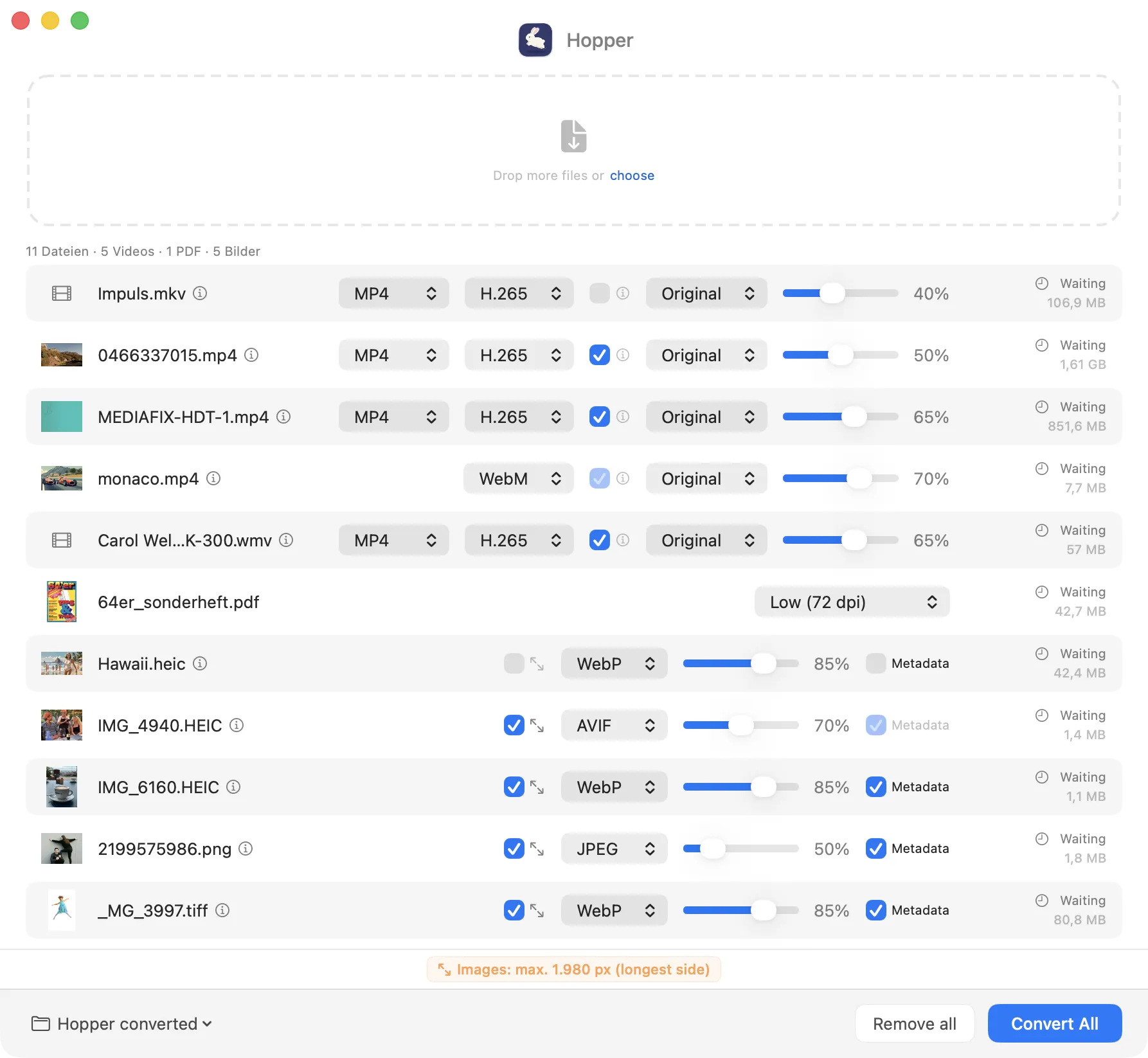
Quick start: After launching Hopper for the first time, open Settings and configure your preferred defaults for videos, images, and PDFs. Then drag your files into Hopper, click “Convert All” – done.
Everything else you need to know is in the Hopper Manual – with explanations, screenshots, and tips for every use case.
Tip Jar
If you contribute 14.99 euros (or more) to the tip jar, you will receive a download link by email for the Apple-notarised “Hopper.app” (version 1.0 from March 18, 2026).
What happens next:
After completing your payment via PayPal, you will receive an email to your PayPal address within a few minutes. It contains a personalised download link that allows you to download “Hopper.app” up to ten times.
You can also try Hopper for free with all features before purchasing – 14 days or 30 conversions:: Download trial version
System Requirements
Hopper is an Apple Silicon Mac app and requires macOS 13.5 or later..
Current version: 1.0 (March 18, 2026)
What’s new?
Version 1.0
March 18, 2026- Release of the first version.
FAQ
Does Hopper modify my original files?
Not by default – Hopper always creates a new file and leaves the original untouched. If a file with the same name already exists, Hopper will ask: Overwrite, Rename or Skip. For extra peace of mind, simply choose a dedicated output folder.
What happens if a file already exists?
Hopper will ask: Overwrite, Rename, Skip or Cancel – your choice.
Where do the converted files end up?
By default in the same folder as the original, with “_converted” appended to the filename. Both can be changed in the settings.
Can I convert different file types at the same time?
Yes. Images, videos and PDFs can all be in Hopper at once – each file is processed with the appropriate settings.
Will Hopper run on my Mac?
Hopper requires macOS 13.5 or later and a Mac with Apple Silicon (M1 or newer). Intel Macs are not currently supported.
Are metadata preserved?
For images, this can be enabled in Settings; however, AVIF does not support metadata in this version. For videos, audio tracks and common metadata are retained.
I made a contribution to the tip jar but never received the download link email – why?
Sometimes it takes a few minutes for PayPal to fully process the payment. Only then will the email be sent to the email address associated with your PayPal account. Please check your spam or junk mail folder and especially the email account you used to sign up with PayPal. Please also make sure your mailbox is not full – if it is, your account will not be able to receive any further emails. If none of this applies and you still haven’t received the email after 15–30 minutes, it may be because you contributed less than 9.99 euros to the tip jar.

MetaData

DeskMate

Wann war das

Designers Toolbox